Set up an application
Register an application in the developer portal and configure its redirect URIs, client type and scopes.
An application is how your software identifies itself to onefold. Register one, add a redirect URI, and you have what the Quickstart needs: a client ID, a client secret and a place for users to return to.
Register the application
Create a developer account
Sign up at onefold.eitozx.com and verify your email address. Registering an application requires a verified email.
Register
Open Applications in the developer portal and choose New Application. Name is the only required field. It is what users see on the sign-in page and the consent screen.
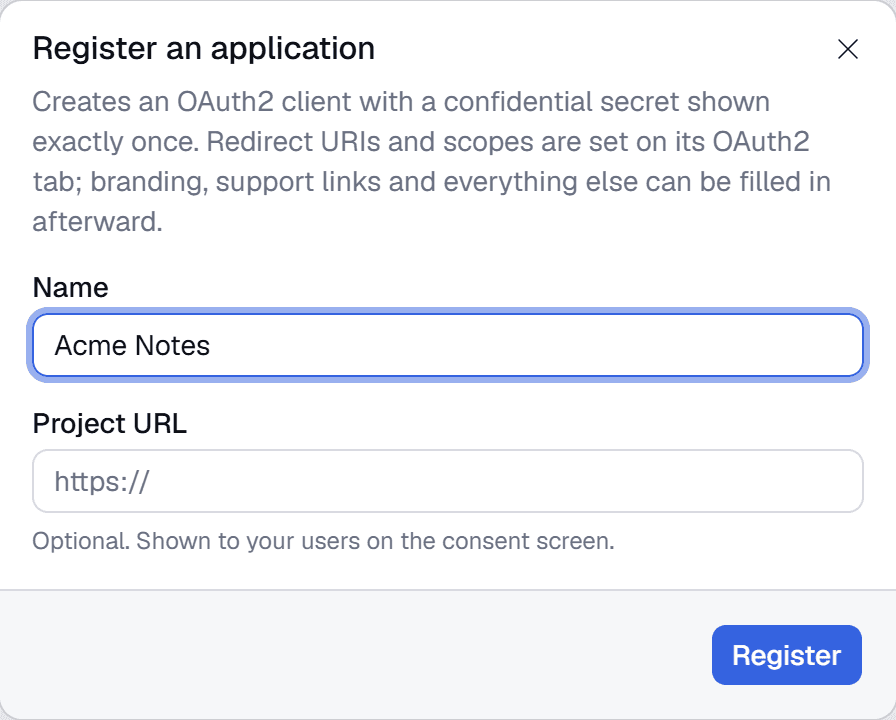 Name is the only required field. Project URL appears on the consent screen.
The number of applications one account can register is limited.
Copy the client secret
The portal shows the client ID and the client secret once the application exists.
The secret is shown once
onefold stores only a hash of the client secret. Copy it now. If you lose it, reset it on the OAuth2 tab; the previous secret stops working when you do.
Configure the OAuth2 tab
A new application cannot sign anyone in until it has a redirect URI. Open the application and go to OAuth2.
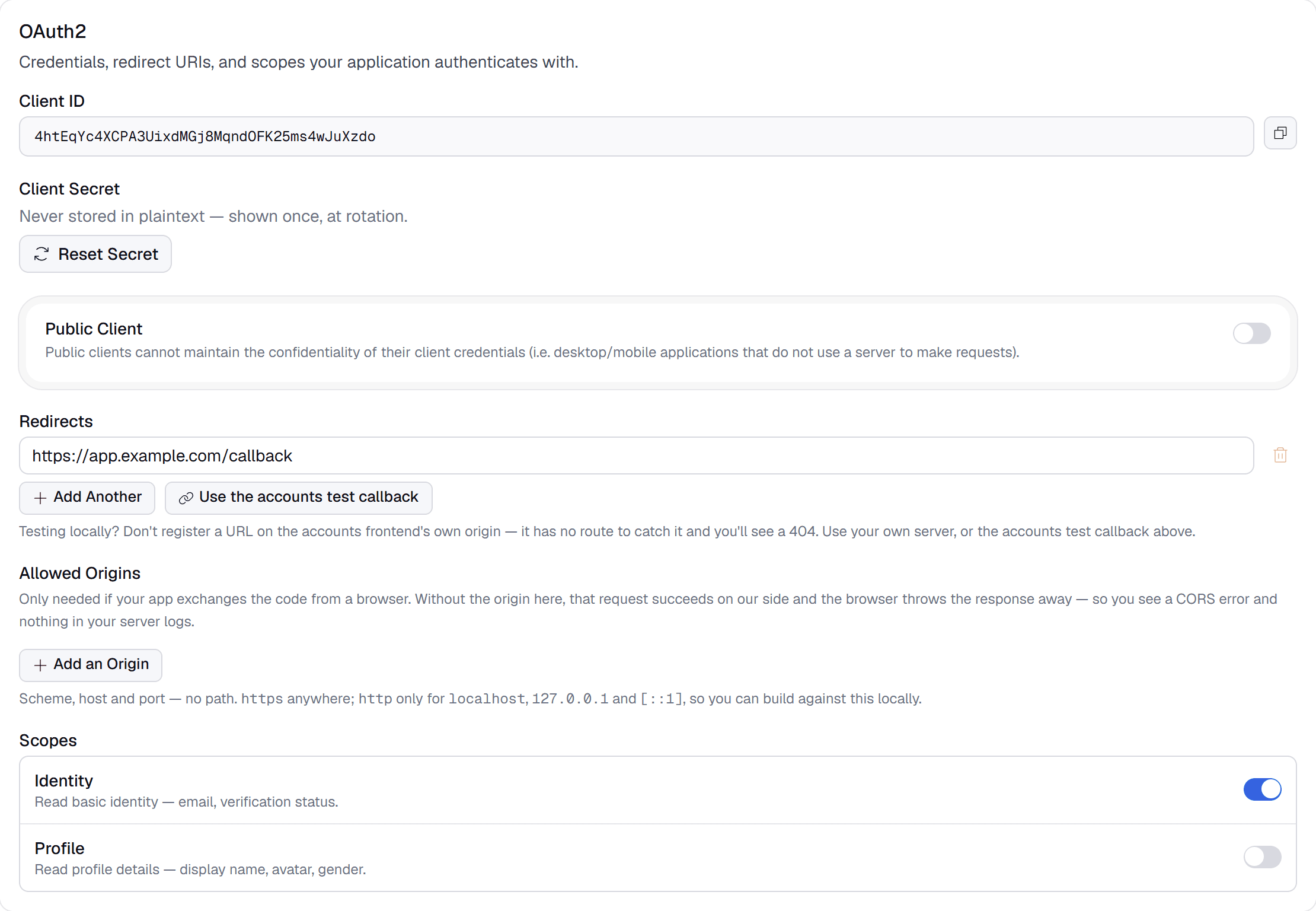 The OAuth2 tab of a new application, with one redirect URI saved.
Redirects
A redirect URI is the URL in your application that receives the user after sign-in.
- The
redirect_uriyou send in a request must match a registered URI exactly, character for character. - A sign-in for an application with no redirect URI ends on an error page.
- How many you can register depends on your plan.
Register one per environment, for example http://localhost:3000/callback and
https://app.example.com/callback.
A mobile or desktop application can register its own scheme, such as myapp://callback or
com.example.app://oauth/callback:
- Write the
scheme://hostform.com.example.app:/callback, with one slash, is refused. - A redirect URI cannot contain a fragment (
#). - Schemes a browser runs or reads itself, such as
javascript:,data:andfile:, are refused.
Client type
Every application starts as confidential. Turn on Public Client when the application cannot keep a secret.
| Client type | Use it for | Authenticates at the token endpoint with |
|---|---|---|
| Confidential | Server-side web applications | Its client secret |
| Public | Single-page, mobile and desktop applications | Its client ID only |
Require PKCE is on for every new application. A confidential client whose redirect URIs are
all https addresses on another host can turn it off; a public client, and any application
with a custom-scheme or loopback redirect URI, always requires PKCE. See
PKCE.
Allowed Origins
A single-page application exchanges the authorization code from browser JavaScript. Add its origin here so the browser accepts the token response. See Token exchange.
Scopes
Choose which scopes the application may request. A new application starts with Identity.
| Scope | Grants |
|---|---|
identity | Username, email address and whether the email is verified |
profile | Username, display name, avatar and other profile details |
An authorization request can ask only for scopes enabled here, with one exception: openid.
Every application can request openid, which returns an ID token, so it has no switch.
Scopes and claims lists every claim each scope returns.
Use separate applications per environment
onefold has no sandbox mode. Register one application for development and another for production, so that each has its own secret, redirect URIs and users.
The rest of the portal
| Tab | What you configure |
|---|---|
| Overview, Analytics | Sign-ins, authorizations and users over time |
| Users | The people who have authorized the application |
| OAuth2 | Everything on this page, plus token lifetimes, the consent screen, protected resources and a URL builder for trying the flow |
| Sign-in | Which sign-in methods the application offers |
| Appearance | How the hosted sign-in page looks |
| Socials | Your own credentials for each social provider |
| Webhooks | Endpoints, events and delivery history |
| API keys | Keys for the management API |
| Activity | Every change made to the application, and who made it |
| Billing | The application's plan and usage |
| Settings | Name, deletion, and custom domains |
A tab your role cannot use is hidden.
The Users tab's Export menu downloads the people who have authorized the application, as the tab shows them and with your metadata about each, as one JSON or CSV file. It exports the current list, not former users. It needs the View authorized users and Edit user records and revoke grants permissions, and asks you to verify your identity first.
Next
Quickstart
Sign a user in to a server-side application with the authorization code flow and PKCE, verify the ID token, and start your own session.
Accounts, applications and grants
The onefold model — one account per person, applications that request access, and the grant that connects them — and what stays in your own application.