Hosted sign-in page
Customize the layout, colour, background, logo and method order of the sign-in and sign-up pages onefold hosts for your application.
Your users sign in and sign up on pages onefold hosts for your application. You decide how those pages look on the application's Appearance tab. You do not build or host a sign-in form.
The editor shows a live preview beside three groups: Brand, for how the page looks; Form, for which sign-in methods appear and in what order; and Configuration, the resulting design as tokens or JSON. Changes save as you make them and go live when you choose Publish.
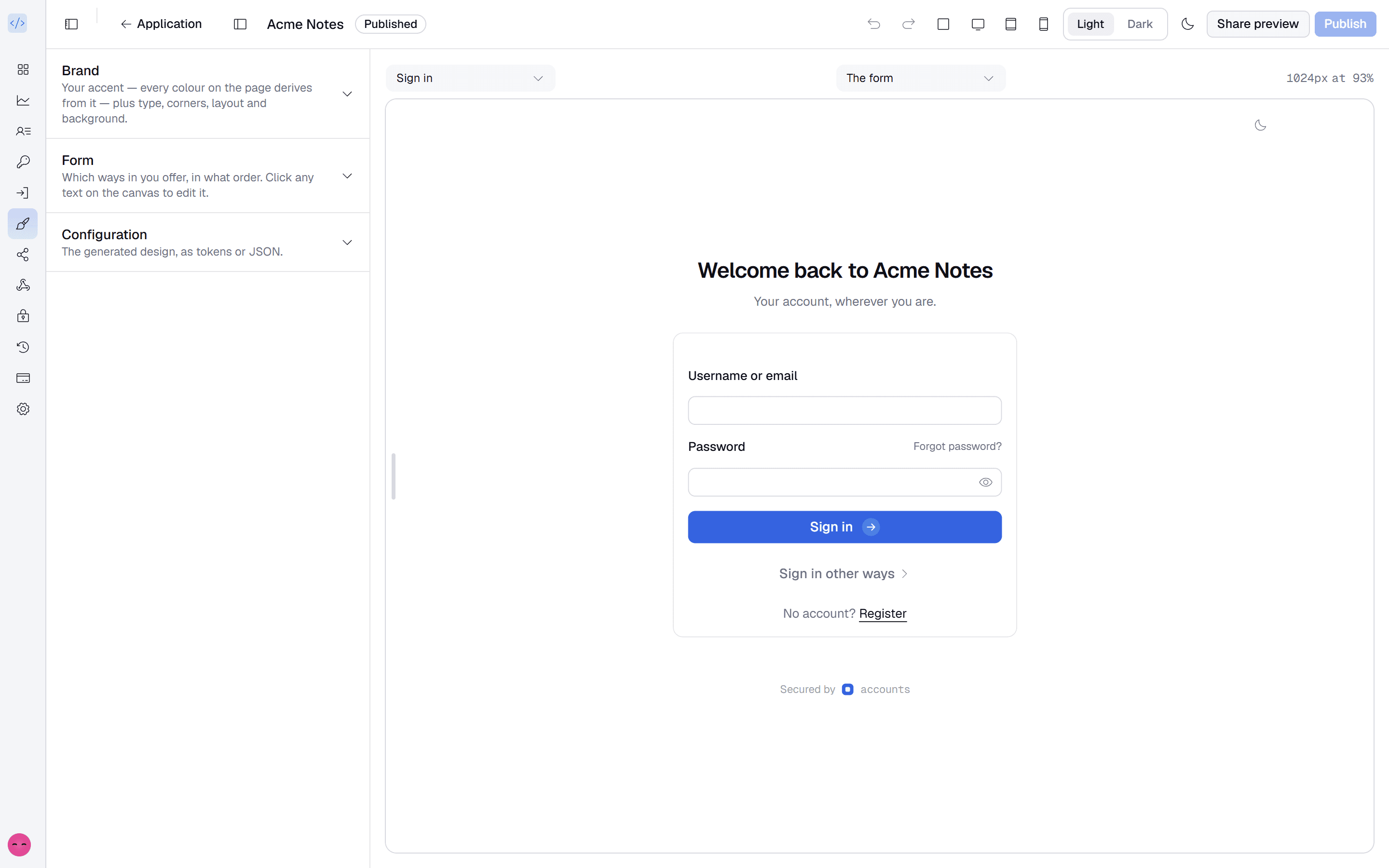 The design editor. Switch the preview between pages, devices, and light and dark.
What you can and cannot change
| You can change | You cannot change |
|---|---|
| Layout, accent colour, background, logo | The fields of the sign-in form |
| Which sign-in methods appear, and their order | The markup, styles or scripts of the page |
| The page heading | How a method works |
| The browser tab's icon and title, on plans that include it | The consent screen's layout |
These pages cannot be embedded: they refuse to be shown inside a frame on any site, yours included. Redirect the browser to them instead of framing them.
Choose a layout
Pick one of five layouts. Every layout is part of every plan.
| Layout | What it looks like |
|---|---|
| Simple | One centred card on the page background. The default. |
| Split | Your logo and name above the form, beside a panel in your accent colour. The panel is hidden on a phone. |
| Card | Your logo and name above the card, on a muted background, with social providers first. |
| Split card | One wide card holding the form and a panel side by side. |
| Minimal | Your logo above a plain, flat form. |
The layout applies to the sign-in and sign-up pages. The consent screen always uses the Simple layout.
The page heading is a single line. A heading too long for the page is cut off with an ellipsis.
Colour
Set one accent colour. onefold derives every other colour on the page from it, for light and dark mode, and adjusts them so text stays readable. There is no palette to maintain.
Background
The background can be nothing, a gradient made from your accent, an image you upload, or a shader. You set it separately for light and dark mode. Over an image or a shader you can add an overlay to keep the form readable.
An animated or shader background is a plan feature (auth_background_animation). It holds
still for anyone whose system asks for reduced motion.
Logo and browser tab
- Whether your logo shows depends on the layout: Split and Card show your logo and name, Minimal shows your logo, and Simple and Split card show neither.
- With
custom_browser_branding, the browser tab shows your favicon and title. - With
branding_badge_removable, which only the Whitelabel plan has (arranged on request from Pricing), you can hide the "Account by onefold" line on the sign-in and sign-up pages. The onefold mark always shows on the consent screen. - The "Account by onefold" line opens onefold's page for your users in a new tab: what their onefold account is, what your application receives, and where they manage it.
Plans and limits lists every plan feature.
Order the sign-in methods
Turn methods on or off on the Sign-in tab. See Sign-in methods. Then, under Appearance → Form, drag them into order and choose how they are grouped:
| Grouping | What the user sees |
|---|---|
| The first one, then Other ways | Your first method, with the rest behind Sign in other ways |
| One list | Every method at once |
| The first one, then the rest | Your first method, then the others below it |
| Providers, then email | Social providers first, then email sign-in |
Serve it from your own domain
The hosted pages can be served from a domain you own, such as auth.example.com. See
Custom domains.
Sign out and revoke
What signing out of your application ends, how to revoke onefold tokens, and every event that ends your application's access to a user.
Sign-in methods
The ways a user can sign in to a onefold application — password, passkey, emailed link, emailed code and social providers — and how sign-up, verification and recovery work.