Sign-in methods
The ways a user can sign in to a onefold application — password, passkey, emailed link, emailed code and social providers — and how sign-up, verification and recovery work.
A sign-in method is one way a user proves who they are on your hosted sign-in page. You choose which methods your application offers. onefold runs every one of them, including the email it sends.
The methods
| Method | Default | Depends on your plan |
|---|---|---|
| Password | On | No |
| Passkey | On | No |
| Emailed link (magic link) | Off | Yes, magic_link_enabled |
| Emailed code (one-time code) | Off | Yes, email_otp_enabled |
| Social provider | On, and shown only once you have saved that provider's credentials | Yes, social_providers_allowed |
Turn each one on or off under Ways in on the application's Sign-in tab.
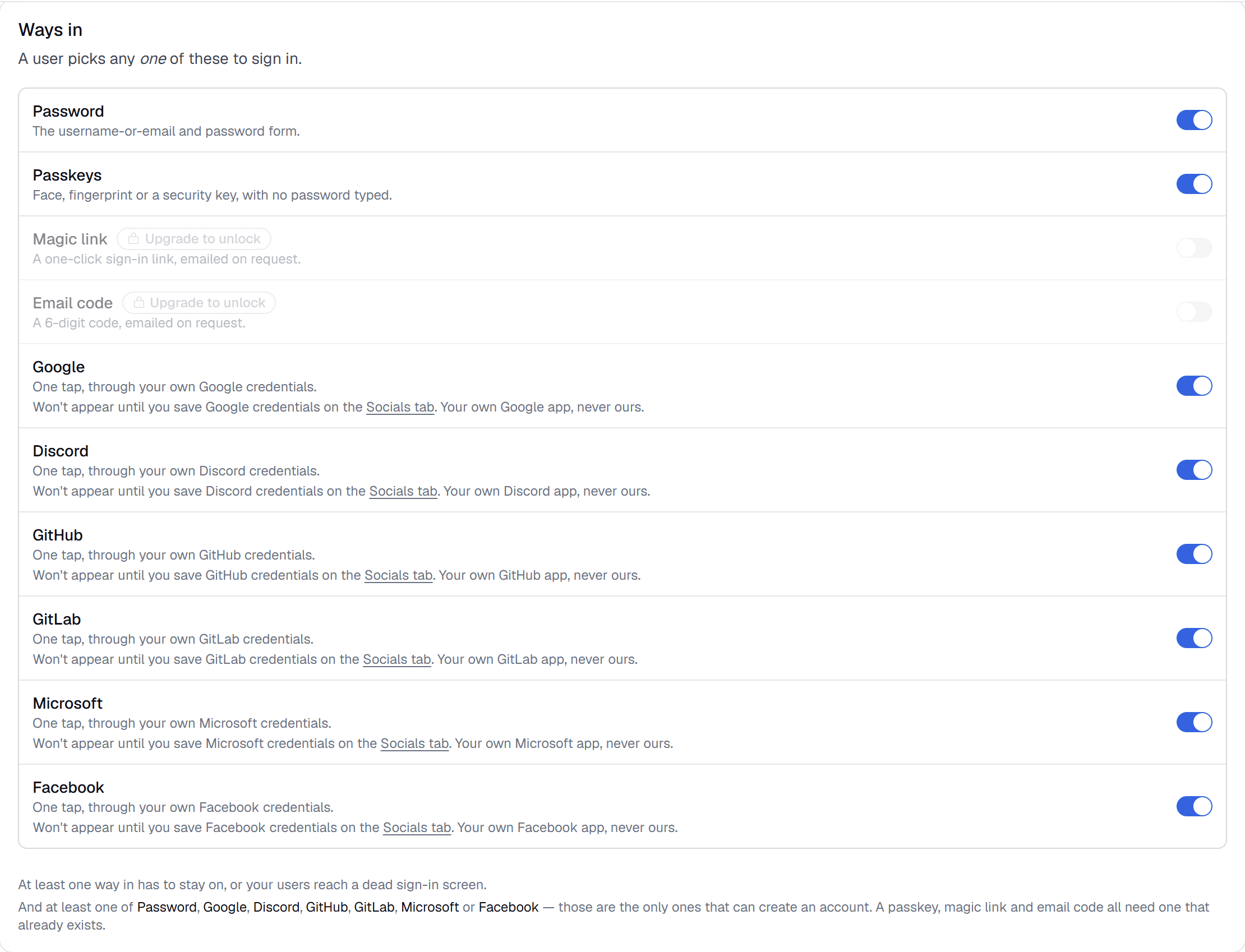 Ways in, on the Sign-in tab. A method your plan does not include is marked Upgrade to unlock.
Two rules apply:
- At least one method must stay on.
- At least one of them must be able to create an account: password or a social provider. A passkey, an emailed link and an emailed code all need an account that already exists.
A method you turn off disappears from your hosted pages. It does not change the user's account: a person who has a password can still use it with another application that offers password sign-in.
Email methods need no setup
onefold sends the link or the code itself. You do not configure an email provider, a sending domain or a template to offer either method.
The emailed code has eight digits, and the page asks for it in a box with one slot per digit. A code of any other length, or one with anything but digits in it, is refused without counting as a failed attempt.
Social providers
A social provider appears as a "Continue with …" button once you have added your own credentials for it. See Social login.
What your application learns about the method
Nothing. The tokens your application receives are the same whichever method the user chose. There is no claim that names the method, and no way to require a particular one for a particular user.
A user who already has a session on onefold skips the sign-in page altogether.
Sign-up
The hosted sign-in page links to a hosted sign-up page, where a person signs up with an email address and a password. onefold emails them an eight-digit verification code, and they enter it on the same page to complete sign-up. Once completed, the account is created, the email address is verified, and the user is signed in and continues the sign-in they started.
A person can also arrive through a social provider, which creates the account from the provider's details. When the provider confirms the person's email address, the account is created at once. When it does not, onefold emails the same eight-digit code to that address and the account is created once the person enters it. A provider account with no email address cannot be used to sign up.
One network address can create a limited number of accounts in a short time. A person who reaches that limit is asked to wait and try again.
The account that results is the person's one onefold account, not an account with your application. See Accounts, applications and grants.
You can add your own questions to sign-up. See Sign-up questions.
Email verification
A person who signs up with an email address and a password verifies the address as part of signing up, with the emailed code. No account is created until the code is entered, so there is no unverified account left behind by a sign-up that was not completed. A sign-up through a social provider is verified by the provider when it confirms the address, and by the same emailed code when it does not.
An account whose email address is not verified cannot sign in with a password, a passkey or a social provider. The person is asked to verify the address and is sent a verification link.
Anything that reaches only the account's email address confirms it: the verification link, a magic link, an emailed code, or a password reset. A magic link and an emailed code then sign the person in.
Asking for a magic link, an emailed code, a password reset or a new verification link gives the same answer whether or not the address has an account, and so does entering a wrong code. Nothing on your hosted pages tells a visitor which addresses are registered.
Confirming an address that was not verified removes what was set on the account before: its password, passkeys, two-factor methods, linked social accounts and sessions, and every application's grant. The person is told by email, and chooses a password or adds a passkey again. This is what stops someone who created an account on another person's address from keeping a way in.
Your application can read the result:
email_verifiedin the ID token and in userinfo, with theidentityscopeconsent.revoked, when a user your application knows confirms an address that was not verified. See Account lifecycle.
email_verified describes the address on the account now. Users cannot change their own
address: onefold staff do, and the account is then unverified until the person confirms the
new address. Read email again rather than relying on a value you stored.
Recovery
Recovery belongs to the user and to onefold. The hosted sign-in page has a Forgot password? link; the user receives an email and chooses a new password.
A password reset through recovery:
- signs the user out of onefold everywhere,
- ends every application's tokens for that user, including yours.
Your application sees refused tokens and sends the user through sign-in again. See Account lifecycle.
Lockouts
onefold slows down and temporarily refuses repeated failed sign-in attempts. This happens on the hosted page and needs nothing from your application. Your application cannot change these limits and is not told when one applies.
Hosted sign-in page
Customize the layout, colour, background, logo and method order of the sign-in and sign-up pages onefold hosts for your application.
Social login
Let users sign in to your onefold application with Google, GitHub, Discord, GitLab, Microsoft or Facebook, or require a provider connection so your application can read its data.